

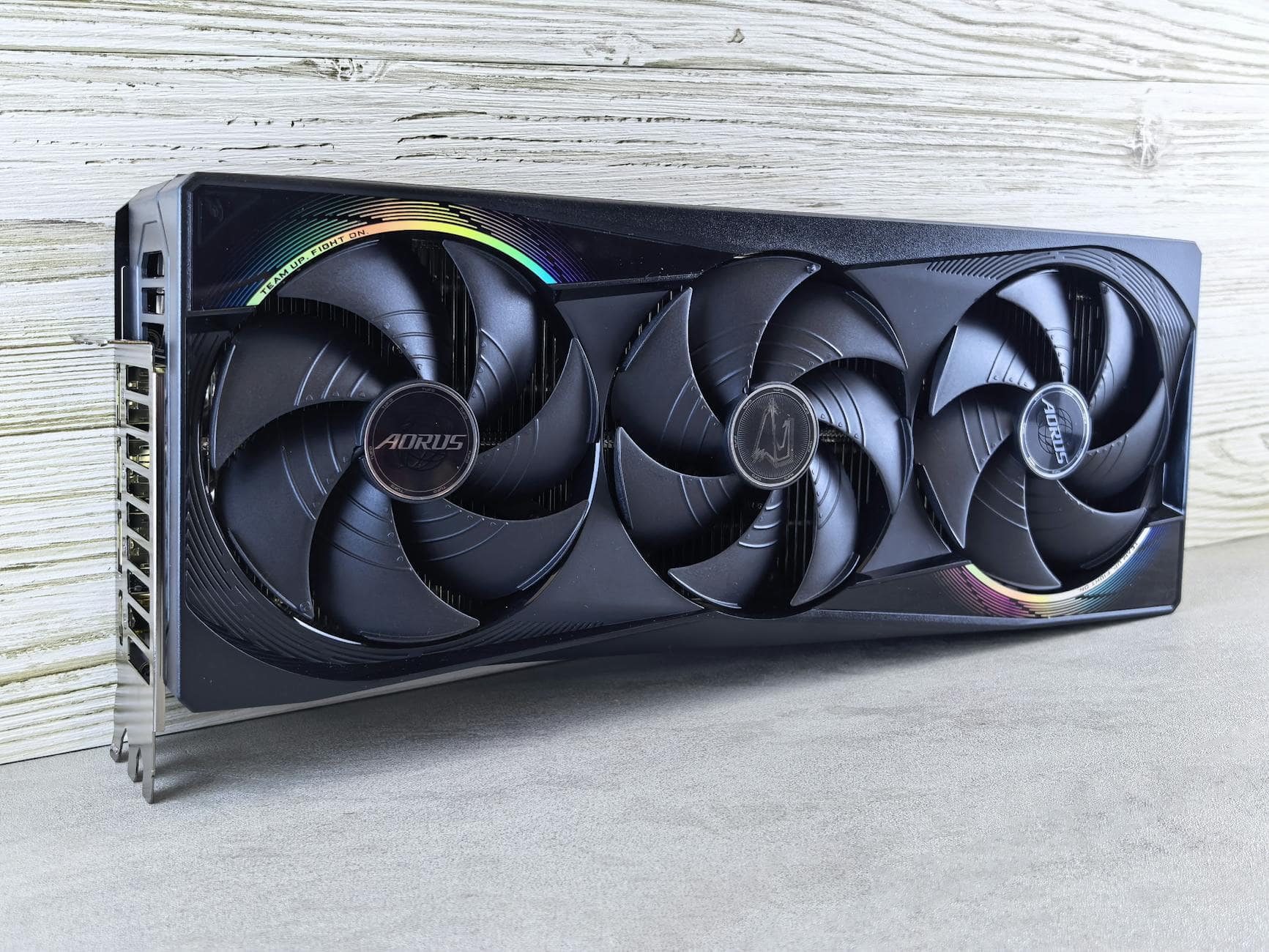
Install Ollama (v0.6+), run ‘ollama pull llama4:scout’ to download the 67 GB model, then ‘ollama run llama4:scout’ to start. You need an NVIDIA GPU with 24 GB VRAM for usable performance.
What Llama 4 Actually Is (and Why It Matters for Local AI)
Meta released Llama 4 in April 2025. Two models shipped: Scout and Maverick. Both use a mixture-of-experts (MoE) architecture, which means only a fraction of the total parameters activate per token. Scout has 109B total parameters but only 17B active. Maverick scales to 400B total with the same 17B active.
The MoE approach is what makes local deployment realistic. You’re not loading 109B parameters into VRAM. You’re loading routing logic plus 17B active weights, and the router picks which of Scout’s 16 experts handles each token. Maverick does the same with 128 experts.
Scout is the one you want for local inference. It fits on a single GPU with quantization, supports a 10 million token context window, and handles both text and image inputs natively. Maverick’s 400B total weight makes it a server-room model.
Hardware Requirements: What You Actually Need
The real bottleneck is VRAM. Everything else is secondary.
| Setup | GPU | VRAM | Quantization | Speed | Quality |
|---|---|---|---|---|---|
| Production | NVIDIA H100 | 80 GB | FP16 | ~120 tok/s | Full |
| Enthusiast | RTX 4090 | 24 GB | int8 | ~105 tok/s | Near-lossless |
| Budget GPU | RTX 4090 | 24 GB | int4 | ~85 tok/s | Minimal loss |
| Aggressive | RTX 4090 | 24 GB | 1.78-bit | ~20 tok/s | Noticeable loss |
| CPU only | None | 64 GB RAM | Q2_K | ~0.5 tok/s | Degraded |
The RTX 4090 with int8 quantization is the sweet spot. You get 105 tokens per second with negligible quality loss. That’s faster than most API responses. If you have 24 GB of VRAM and can tolerate slightly lower quality, int4 drops the memory footprint to about 11 GB while keeping speeds above 80 tok/s.
For the aggressive quantizers: Unsloth’s 1.78-bit quantization squeezes Scout into any 24 GB card, but at 20 tok/s with visible quality degradation on nuanced tasks. Fine for casual chat. Not production-grade.
CPU-only inference works but barely. At 0.5 tok/s, you’re waiting minutes for a paragraph. Only viable for testing or if you genuinely cannot access a GPU.
System Requirements Checklist
Before you install anything, verify these minimums:
- GPU route: NVIDIA GPU with 24+ GB VRAM (RTX 3090, RTX 4090, A6000, or better). AMD ROCm support exists but is less stable.
- CPU route: 64 GB system RAM minimum. 128 GB recommended for reasonable context lengths.
- Storage: 70 GB free for the Q4_K_M quantized model (67 GB download). SSD strongly recommended.
- OS: macOS 13+, Linux (Ubuntu 22.04+), or Windows 11 with WSL2.
- Ollama version: 0.6+ (Llama 4 MoE support was added in later releases).
Step 1: Install Ollama
If you already have Ollama, update it. Llama 4 support requires a recent version with MoE architecture handling.
macOS / Linux:
curl -fsSL https://ollama.com/install.sh | shWindows: Download the installer from the Ollama website. WSL2 with the Linux install script also works.
Verify the installation:
ollama --versionYou need version 0.6 or later. If you’re on an older version, the install script handles the upgrade automatically.
Step 2: Pull Llama 4 Scout
The official model tag is llama4:scout. This pulls the Q4_K_M quantized version at 67 GB.
ollama pull llama4:scoutOn a 500 Mbps connection, expect 15-20 minutes. The model downloads in chunks and checksums automatically. If your connection drops, re-running the command resumes where it left off.
For the community-quantized versions with different bit depths:
# Ultra-low VRAM (Q2 quantization, ~35 GB download)
ollama pull compcj/llama4-scout-ud-q2-k-xl
Step 3: Run Your First Prompt
Start an interactive session:
ollama run llama4:scoutThe first run takes 30-60 seconds to load the model into VRAM. Subsequent prompts respond in under 200ms for first token.
To use it via the API (for integration with scripts, apps, or other tools):
curl http://localhost:11434/api/generate -d '{
  "model": "llama4:scout",
  "prompt": "Explain mixture-of-experts architecture in three sentences.",
  "stream": false
}'
The API runs on port 11434 by default. It’s the same OpenAI-compatible format that most LLM tooling already supports.
Step 4: Configure for Your Hardware
Ollama auto-detects your GPU and allocates VRAM. But you can tune it.
Set GPU layers manually (useful if you want to split between GPU and CPU):
OLLAMA_NUM_GPU=999 ollama run llama4:scoutSetting OLLAMA_NUM_GPU=999 forces all layers onto the GPU. If your VRAM can’t hold the full model, Ollama automatically spills excess layers to system RAM.
Limit context length (saves VRAM at the cost of shorter conversations):
ollama run llama4:scout --num-ctx 4096Scout’s 10M context window is theoretical. In practice, context length is limited by your available VRAM. A 4096-token context uses far less memory than the default and is enough for most single-turn tasks.
Multi-GPU setup: If you have two GPUs, Ollama can split the model across them. Set CUDA_VISIBLE_DEVICES=0,1 before launching.
Step 5: Use Llama 4 With Your Tools
Once Ollama is running, Llama 4 Scout works with any tool that supports the OpenAI API format.
Open WebUI (browser-based chat interface):
docker run -d -p 3000:8080 --add-host=host.docker.internal:host-gateway -v open-webui:/app/backend/data --name open-webui --restart always ghcr.io/open-webui/open-webui:mainPoint it at http://host.docker.internal:11434 and select llama4:scout from the model dropdown.
Python integration:
from openai import OpenAI

client = OpenAI(base_url="http://localhost:11434/v1", api_key="ollama")
response = client.chat.completions.create(
    model="llama4:scout",
    messages=[{"role": "user", "content": "What is mixture-of-experts?"}]
)
print(response.choices[0].message.content)
LangChain, LlamaIndex, Autogen: All support Ollama as a backend. Point the base URL to http://localhost:11434 and set the model name to llama4:scout.
Scout vs Maverick: Which One to Run Locally
| Spec | Scout | Maverick |
|---|---|---|
| Total parameters | 109B | 400B |
| Active parameters | 17B | 17B |
| Experts | 16 | 128 |
| Context window | 10M tokens | 1M tokens |
| Min VRAM (quantized) | ~11 GB (int4) | ~200 GB |
| Local viability | Yes (single consumer GPU) | No (multi-GPU server) |
| Multimodal | Text + images | Text + images |
| Languages | 12 | 12 |
Scout is the only realistic choice for local deployment. Maverick requires roughly 200 GB of VRAM even with aggressive quantization. That’s a multi-GPU server rack, not a desktop.
The tradeoff is quality depth. Maverick’s 128 experts give it broader specialization than Scout’s 16. For general-purpose tasks, coding, writing, and analysis, Scout handles them well. For highly specialized domain tasks, Maverick pulls ahead, but you’ll need cloud infrastructure to run it.
Performance Tuning and Troubleshooting
Out of memory errors: Reduce context length with --num-ctx 2048, or switch to a more aggressive quantization. If you’re on a 24 GB card with int4, you have roughly 13 GB of headroom for KV cache.
Slow first response: Model loading takes 30-60 seconds on first prompt. Keep the Ollama server running in the background to avoid cold starts. The model stays in VRAM until you explicitly unload it or run a different model.
Quality degradation: If responses feel noticeably worse than the API version, you’re likely on too aggressive a quantization. Move from Q2 to Q4, or from int4 to int8. The jump from 2-bit to 4-bit quantization recovers most of the quality loss.
Image inputs: Llama 4 is natively multimodal. In Ollama, pass images directly:
ollama run llama4:scout "Describe this image" --image ./photo.jpgMeta tested image understanding with up to 5 input images per prompt. Beyond that, results become unreliable.
When to Run Locally vs Use an API
Local inference makes sense when you need privacy (no data leaves your machine), zero latency variability, no per-token costs, or offline access. A single RTX 4090 running Scout at int8 produces 105 tok/s. That’s competitive with most hosted API endpoints and costs nothing per request after the hardware investment.
APIs make more sense if you need Maverick-level quality, don’t want to manage hardware, or need burst capacity beyond what a single GPU handles. The cost equation flips once you’re running more than roughly 10,000 requests per day, at which point self-hosting is cheaper.
Sources: Meta AI Blog, Ollama Library, Hugging Face, Unsloth, NVIDIA Developer Blog